1
Upload the addresses
Качете адресите
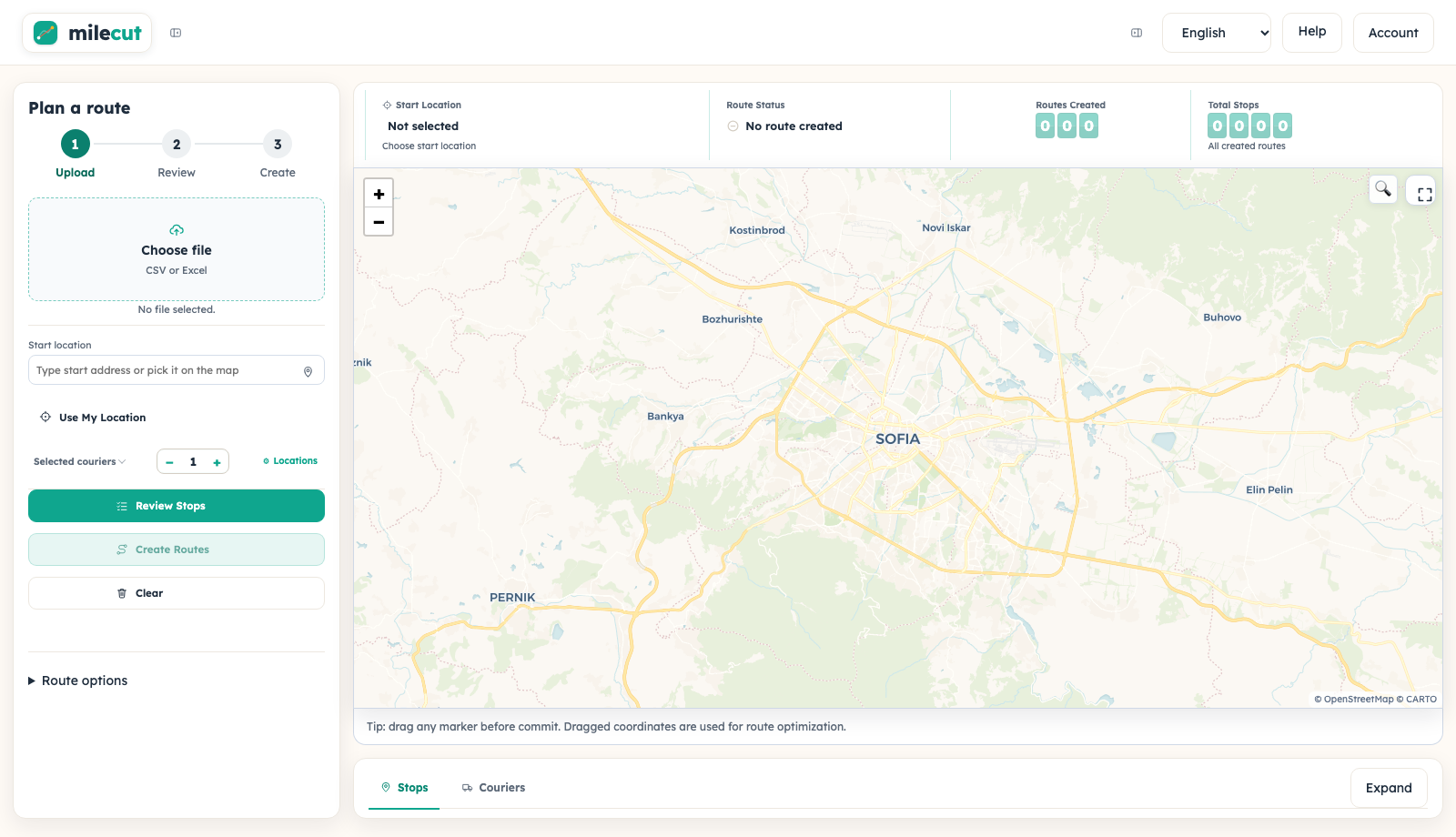
Choose a CSV or Excel file with one delivery per row.
Изберете CSV или Excel файл с по една доставка на ред.
MileCut setup guide
Upload your address list, review the stops and routes, then send each courier a Google Maps link. No complex integration required.
Available in 17 countries. See supported countries.
Ръководство за MileCut
Качете списъка с адреси, проверете спирките и маршрутите и изпратете на всеки куриер връзка към Google Maps. Без сложна интеграция.
Достъпно в 17 държави. Вижте поддържаните държави.
Choose a CSV or Excel file with one delivery per row.
Изберете CSV или Excel файл с по една доставка на ред.
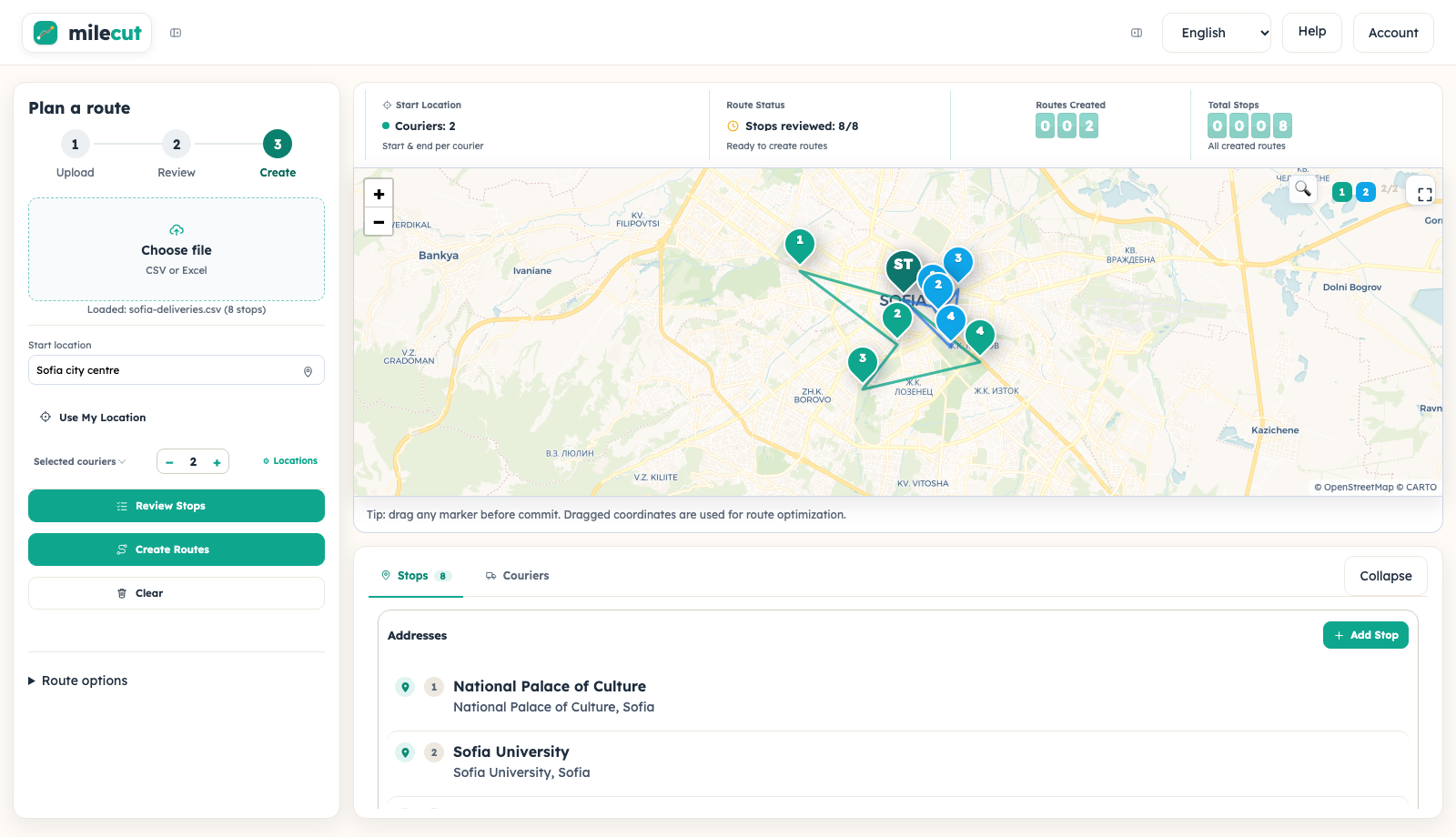
Check the map pins, choose the couriers and create the route.
Проверете точките, изберете куриерите и създайте маршрута.
Open the route or copy the navigation link for the courier.
Отворете маршрута или копирайте линка за навигация към куриера.
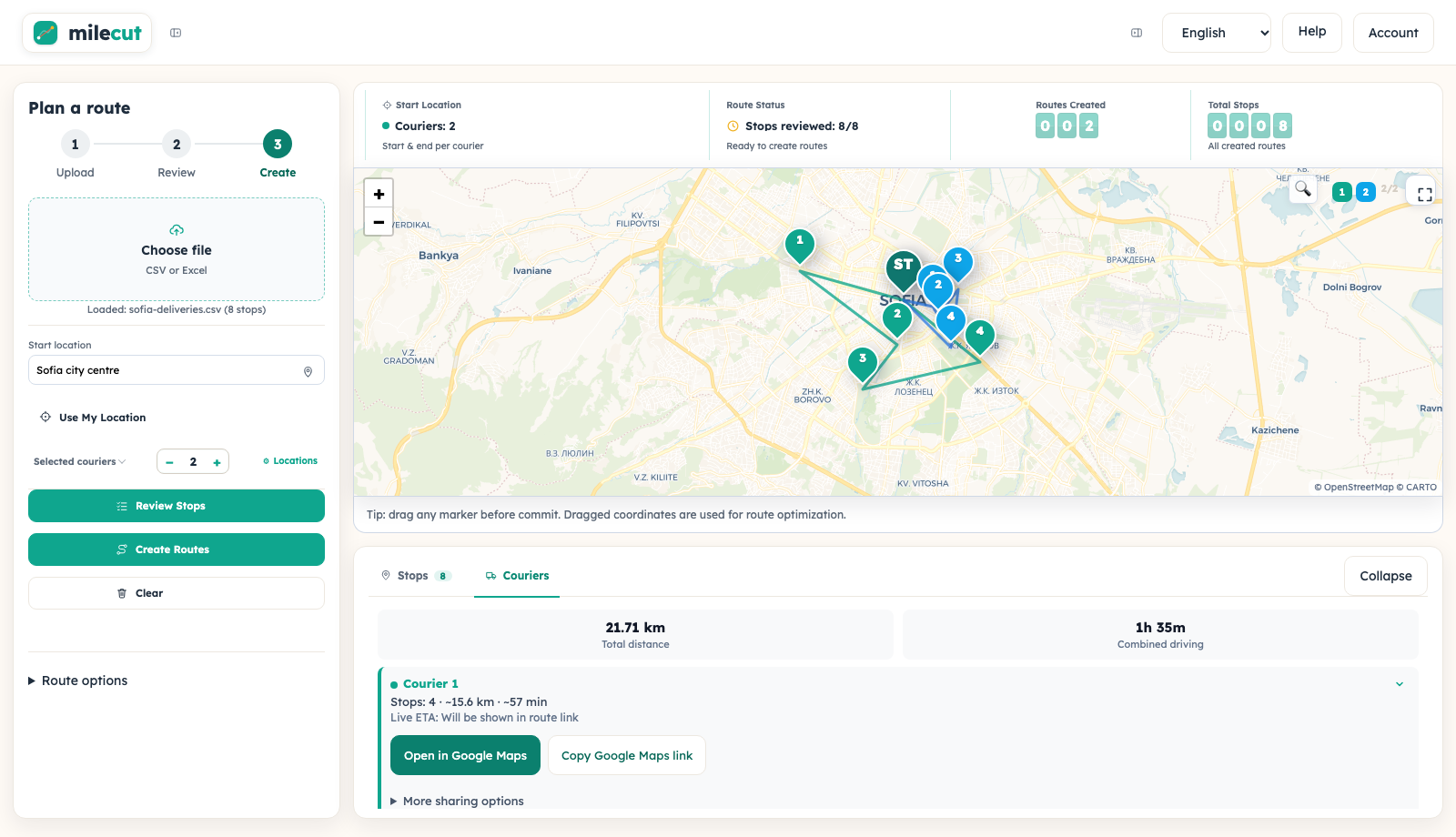
Screens from the MileCut planner in English, using sample Sofia landmarks. The same workflow is available in all 17 supported countries. No customer data is shown.
Екрани от планера на MileCut на английски, с примерни забележителности в София. Процесът е един и същ във всичките 17 поддържани държави. Не са показани клиентски данни.
Upload your delivery addresses, choose where the couriers start, check the stops and create your routes. You can switch language at any time without leaving the planner.
Choose a CSV or Excel file (.csv, .xlsx or .xls), with one delivery per row and an address column. Include the city, street and building number; a postcode helps. Check the loaded stop count and any skipped-row notice. You do not need payment details, invoice numbers or order amounts to plan a route.
Enter your start address, choose a point on the map, or press Use My Location and allow location access. If permission is denied or GPS is unavailable, enter an address or use the map instead. Check the end location too. Use Locations to set different start and end points for individual couriers.
Press Review Stops after choosing the start location. Check the map and resolve any stops that need confirmation. Correct inaccurate pins and exclude deliveries you do not need. On a phone, Route settings returns to the start and courier settings; Map opens the map without removing your list.
Selected couriers is the number you want to use. Where your plan includes Fleet sizing, enable it, set the working day and press Calculate to compare team sizes. A comparison is not a published route. Choose your preferred option before creating routes.
Press Create Routes when the stops are ready. Wait for completion, then open Routes and choose Couriers to see each result. Check the assigned stops and their order. Creating routes uses your plan allowance; do not create the same route again just to find its link.
Open in Google Maps opens the selected route. Copy Google Maps link copies that same navigation link so you can send it to the courier. If there are several parts, use each numbered part in order. Under More sharing options, Copy courier page link shares the separate MileCut courier screen. Print Route opens a printable sheet where your plan permits it.
On a phone, the bottom navigation is Planner, Routes and Account. Routes contains Stops, Couriers and History; saved history depends on your plan. Account holds your profile, security, plan and billing. Back to planner returns to your current work. The static MileCut logo does not take you away from a route.
If the file cannot be read, check the address column and save it again as CSV or Excel. If the start location is missing, return to Route settings. If automatic copying is unavailable, use the manual-copy field. For other problems, contact us with the step and an anonymized screenshot; never send passwords, payment details or customer lists.
Seven days free. No complex integration required to start.
Start a 7-day free trialСедем дни безплатно. Не е нужна сложна интеграция, за да започнете.
Започнете 7-дневен безплатен тест